> For the complete documentation index, see [llms.txt](https://ajuda.pdvlegal.com.br/llms.txt). Markdown versions of documentation pages are available by appending `.md` to page URLs; this page is available as [Markdown](https://ajuda.pdvlegal.com.br/modulo-fiscal/configuracao-da-emissao-de-sat/sat-elgin.md).
# SAT - Elgin
## Como configurar a emissão do SAT- Elgin?
{% hint style="danger" %}
#### Pré-requisitos:
* **Licença fiscal não ativada**: Utilize uma licença nova (não usada anteriormente para emissão fiscal).
* **Certificado AC SAT**: Vincule o SAT ao CNPJ do estabelecimento (consulte o tópico “Vincular equipamento SAT” no manual da Elgin).
* **Dados do contador**: Valide se o SAT está vinculado ao CNPJ com certificado gratuito AC-SAT/SEFAZ.
* **Downloads obrigatórios**:
* Ativador SAT Elgin 1.1.12
* Driver SAT Elgin
Disponíveis no [**site da Elgin**](https://www.elgin.com.br/Produtos/automacao/sat-mfe/smart-sat).
{% endhint %}
### Passo a Passo para Configuração
{% stepper %}
{% step %}
### **Configuração no Retaguarda Cloud:**
* Acesse **Retaguarda Cloud > Administrativo > Filiais**.
* Selecione a filial e vá para a aba **Geral > Fiscal**.
* Clique em **Cadastro** para gerar login na plataforma Invoicy (não preencha as chaves Migrate).
* Após a criação, use **Ver dados de acesso** para obter login/senha do Invoicy.
{% endstep %}
{% step %}
### **Instalação de Drivers e Ativador:**
* Acesse ao link do [**site da Elgin**](https://www.elgin.com.br/Produtos/automacao/sat-mfe/smart-sat)
* Localize a categoria: "Download Center"
* Baixe e instale primeiro o **Driver**, depois o **Ativador 1.1.12**.
* Conecte o SAT ao computador via USB e ao roteador via cabo de rede.
{% endstep %}
{% step %}
### **Ativação do SAT:**
* Abra o **Elgin Tools** e selecione "SAT não ativado".
* Preencha:
* **Código de ativação**: 123456789 (padrão recomendado).
* **CNPJ do estabelecimento**.
* **Tipo de certificado**: *Certificado gratuito AC-SAT/SEFAZ*.
* **Estado da federação**: São Paulo (para MF-e).
* Clique em **Ativar SAT** e aguarde a confirmação.
{% endstep %}
{% step %}
### **Vinculação da Assinatura AC:**
* Na aba **Vinculação**, preencha:
* **CNPJ do contribuinte**.
* **CNPJ da Software House**: 15.336.489/0001-44 (Alpha Logo).
* **Assinatura AC**: Cole a chave gerada no Cloud.
* Clique em **Salvar** para confirmar a vinculação.
{% endstep %}
{% step %}
### **Configurar Dispositivo no Retaguarda Cloud:**
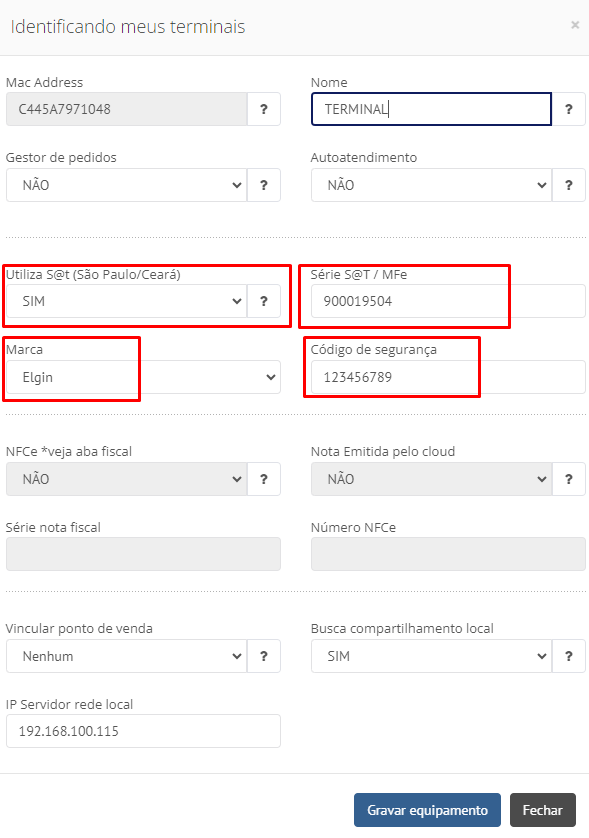
* Acesse **Retaguarda Cloud > Administrativo > Meus Terminais**.
* Edite o equipamento responsável pelo SAT:
* **Nome**: Identifique o terminal (ex: "PDV Caixa 1").
* **Utiliza SAT**: Marque como **Sim**.
* **Série**: 1000 (padrão se não houver série definida).
* **Marca**: Elgin.
* **Código de segurança**: Insira o código usado na ativação.
* Clique em **Gravar equipamento**.
{% endstep %}
{% step %}
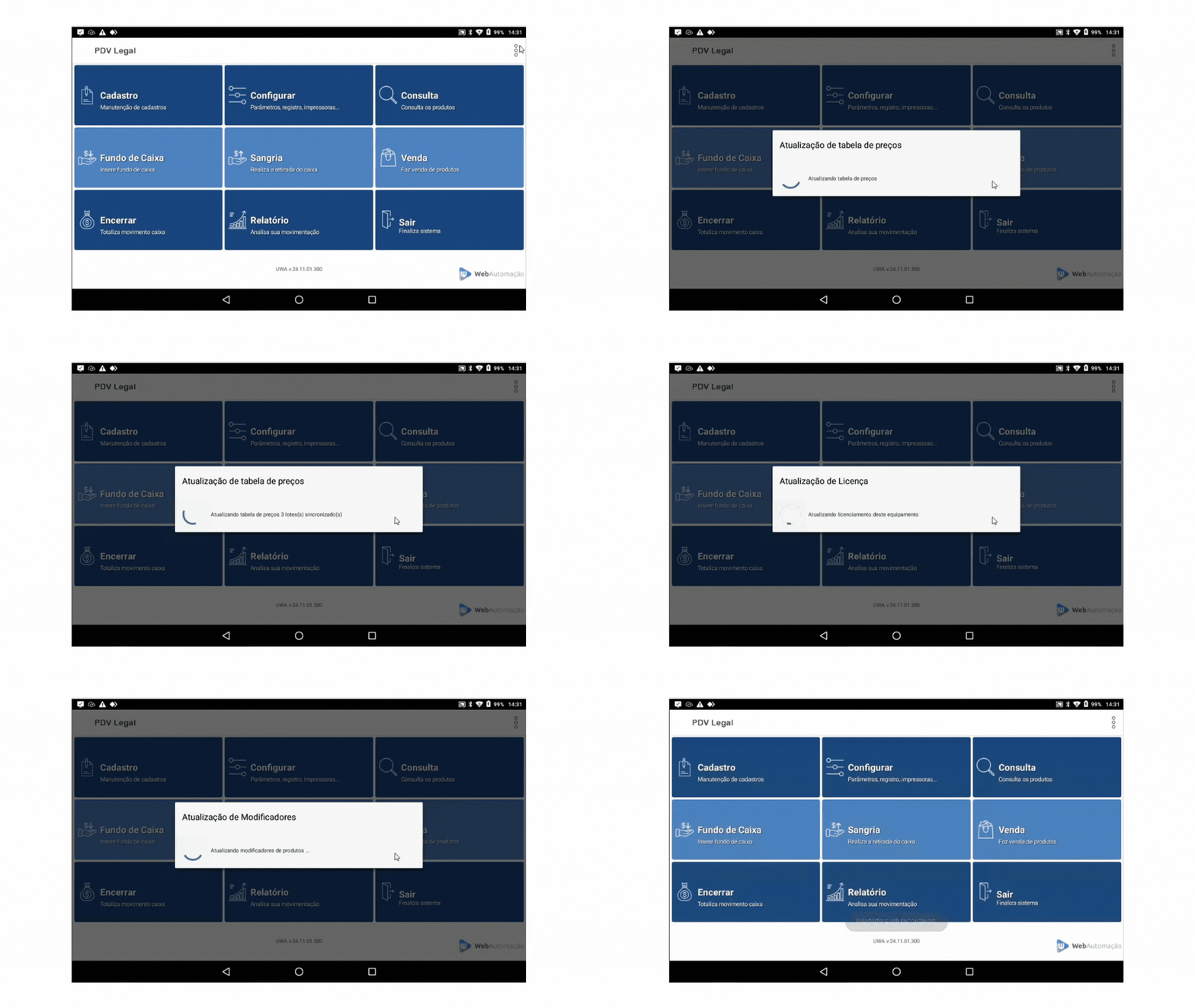
### **Sincronização no PDV:**
* No PDV: **3 pontinhos > Baixar Tabelas > Continuar**.
{% endstep %}
{% endstepper %}
***
## Preciso de ajuda
{% hint style="danger" %}
* **Problema:** Erro na comunicação com o SAT.
* **Solução:**
* Verifique se o CNPJ está vinculado ao SAT via certificado AC-SAT.
* Confira se o código de ativação tem 9 dígitos (ex: 123456789).
* **Problema:** SAT não comunica com o Raspberry.
* **Solução:**
* Certifique-se de que o cabo de rede está conectado e o Raspberry está ligado.
* No PDV: **Configura > Parâmetros > Define conexão SAT = LAN**.
* **Problema:** Assinatura AC não é aceita.
* **Solução:** O código deve ter exatamente 344 caracteres (gerado pela Software House).
{% endhint %}
***
## Dicas rápidas
{% hint style="success" %}
* **SAT Elgin**: Funciona **apenas** com Raspberry.
* **Teste de emissão**: Após configurar, realize uma venda teste.
* **Backup**: Salve o código de ativação e a chave AC em local seguro.
{% endhint %}
---
# Agent Instructions
This documentation is published with GitBook. GitBook is the documentation platform designed so that both humans and AI agents can read, navigate, and reason over technical content effectively. Learn more at gitbook.com.
## Querying This Documentation
If you need additional information that is not directly available in this page, you can query the documentation dynamically by asking a question.
Perform an HTTP GET request on the current page URL with the `ask` query parameter, and the optional `goal` query parameter:
```
GET https://ajuda.pdvlegal.com.br/modulo-fiscal/configuracao-da-emissao-de-sat/sat-elgin.md?ask=&goal=
```
`ask` is the immediate question: it should be specific, self-contained, and written in natural language.
`goal` is optional and describes the broader end goal you are ultimately trying to accomplish on behalf of the user. GitBook uses it to tailor the answer towards what is most useful for that goal.
The response will contain a direct answer to the question and relevant excerpts and sources from the documentation.
Use this mechanism when the answer is not explicitly present in the current page, you need clarification or additional context, or you want to retrieve related documentation sections.

.gif?alt=media&token=805bd52a-ca9e-4e21-8ea3-2c43e326f362)