> For the complete documentation index, see [llms.txt](https://ajuda.pdvlegal.com.br/llms.txt). Markdown versions of documentation pages are available by appending `.md` to page URLs; this page is available as [Markdown](https://ajuda.pdvlegal.com.br/pdv/configuracao-do-pdv/atualizacao-da-versao-do-sistema.md).
# Atualização da versão do sistema
O sistema tem duas formas de atualizar a versão do sistema:
* **Manual:** O usuário decide quando atualizar.
* **Compulsória:** Atualização forçada a cada **3 meses** (não pode ser ignorada).
{% hint style="danger" %}
**Antes de atualizar a versão do sistema, realize um Backup!**
{% endhint %}
## Fazer backup dos dados
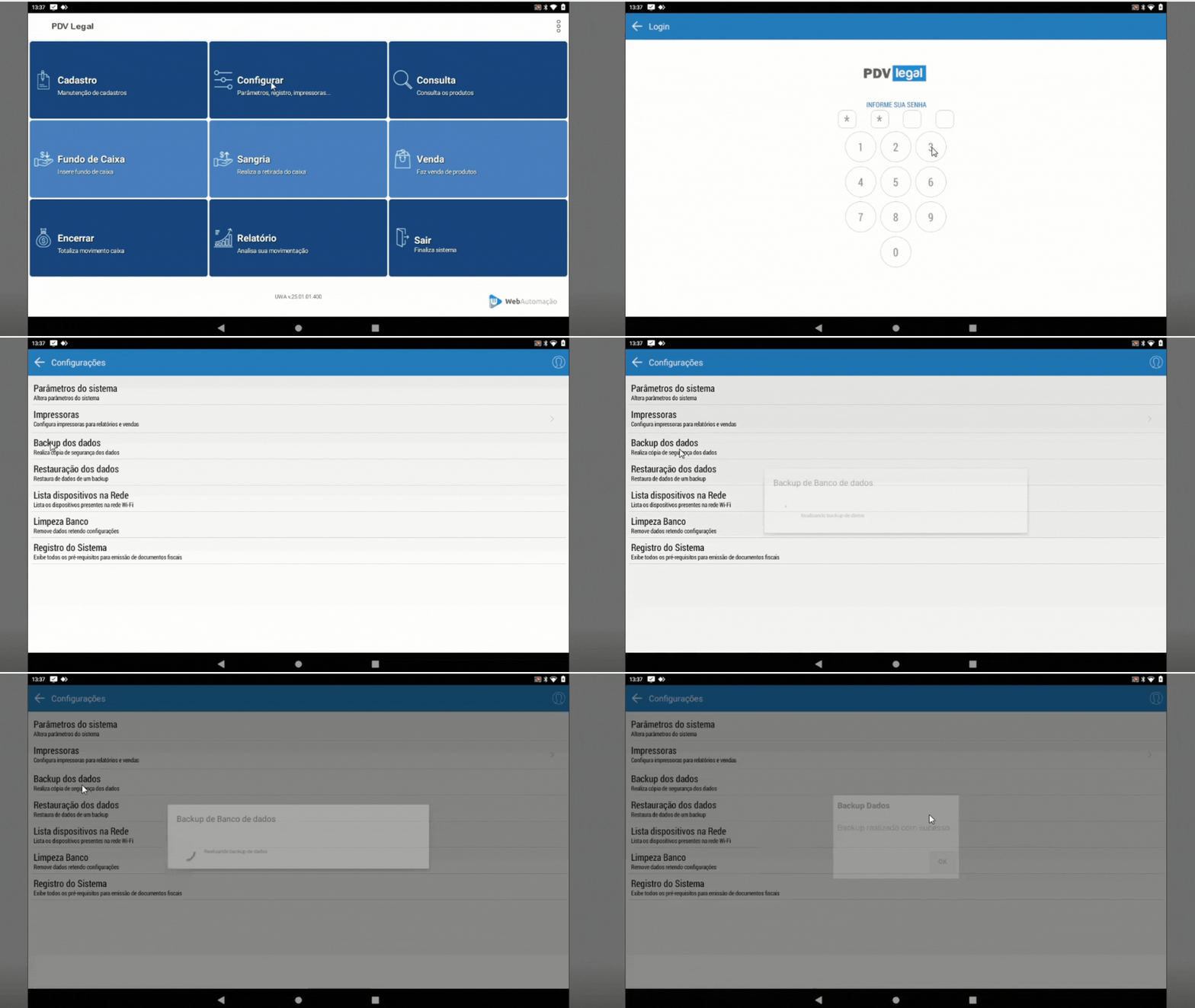
Para realizar o Backup, siga o passo a passo abaixo:
1. **Acessar o menu de backup:**
* No PDV, clique em **Configurar** (menu principal).
2. **Realizar backup:**
* Selecione **Backup dos Dados** > Aguarde a conclusão.
{% hint style="success" %}
**Importante:** O backup evita perda de informações em caso de falha.
{% endhint %}
## Atualizar a versão manualmente
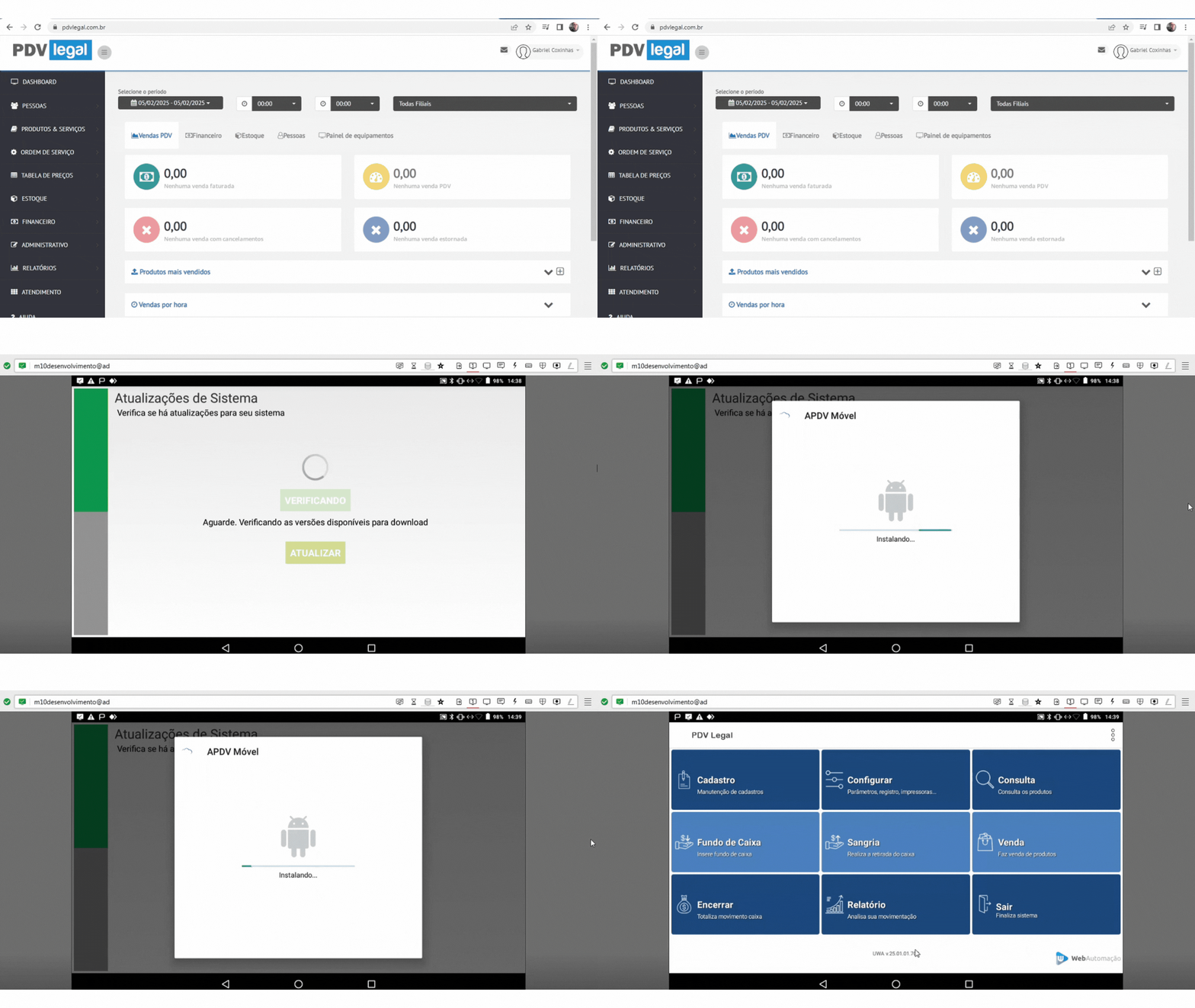
Para realizar a atualização manual, siga o passo a passo abaixo:
{% hint style="warning" %}
Em versões antigas, o botão **Atualizar agora** pode não funcionar por uma limitação com a Google.
Quando isso acontecer, use o link externo do instalador.
{% endhint %}
**1 - Acessar o menu de atualização:**
* No PDV, clique em **Configurar** > Toque nos **três pontos** (canto superior direito) > **Atualização**.
**2 - Verificar nova versão:**
* Clique em **Verificar** > Aguarde o sistema buscar atualizações.
**3 - Instalar atualização:**
* Se houver uma nova versão, clique em **Atualizar** > Confirme a instalação.
**4 - Concluir:**
* Siga as instruções na tela para finalizar.
### Se o botão **Atualizar agora** não funcionar
Use uma destas formas para abrir o link externo do PDV Legal:
**Link direto para atualização:** [Acessar instalador do PDV Legal](https://pdvlegal.tec.br/)
#### Opção 1 — Pelo aplicativo
{% stepper %}
{% step %}
Abra o PDV Legal.
{% endstep %}
{% step %}
Toque nos **três pontinhos**.
{% endstep %}
{% step %}
Selecione **Ferramenta de suporte**.
{% endstep %}
{% step %}
Toque em **Apps PDV legal**.
{% endstep %}
{% step %}
Abra o link externo e siga a instalação da versão atual.
{% endstep %}
{% endstepper %}
#### Opção 2 — Pelo navegador
Acesse [Acessar instalador do PDV Legal](https://pdvlegal.tec.br/) diretamente no navegador do terminal.
Depois, siga a instalação exibida na tela.
***
## Entender a atualização compulsória
* **Ocorre automaticamente** a cada 3 meses.
* **Não pode ser ignorada:** O PDV bloqueará o uso até a atualização ser concluída.
***
### Dicas rápidas
{% hint style="success" %}
* **Faça backup sempre:** Principalmente antes de atualizações compulsórias.
* **Teste após atualizar:** Verifique se todas as funções do PDV estão operacionais.
* **Horário recomendado:** Atualize fora do horário de pico para evitar interrupções.
{% endhint %}
---
# Agent Instructions
This documentation is published with GitBook. GitBook is the documentation platform designed so that both humans and AI agents can read, navigate, and reason over technical content effectively. Learn more at gitbook.com.
## Querying This Documentation
If you need additional information that is not directly available in this page, you can query the documentation by asking a question.
Perform an HTTP GET request on the following URL with the `ask` and `goal` query parameters:
```
GET https://ajuda.pdvlegal.com.br/pdv/configuracao-do-pdv/atualizacao-da-versao-do-sistema.md?ask=&goal=
```
`ask` is the immediate question: it should be specific, self-contained, and written in natural language.
`goal` is what the user is ultimately trying to achieve, the reason they need the answer. Sharing it helps GitBook give you a better, more relevant answer. A goal is most helpful when it describes the outcome the user wants rather than restating the question. For example, with `ask=how do I create an API token`, a goal like `automate deployments from our CI pipeline` lets GitBook tailor the answer to that use case.
The response will contain a direct answer to the question and relevant excerpts and sources from the documentation.
Use this mechanism when the answer is not explicitly present in the current page, you need clarification or additional context, or you want to retrieve related documentation sections.