> For the complete documentation index, see [llms.txt](https://ajuda.pdvlegal.com.br/llms.txt). Markdown versions of documentation pages are available by appending `.md` to page URLs; this page is available as [Markdown](https://ajuda.pdvlegal.com.br/pdv/instalacao-do-pdv-legal/instalacao-do-pdv-legal-em-terminais-rede.md).
# Instalação do PDV Legal em terminais Rede
Processo para instalar o PDV Legal em terminais Rede (a Laranjinha do Itaú) homologados.
{% hint style="warning" %}
EM PROCESSO DE HOMOLOGAÇÃO
Algumas etapas ainda podem estar em definição, caso tenha alguma dúvida que este manual não te ajude, acione o nosso time comercial.
{% endhint %}
{% hint style="info" %}
A maquininha da **Rede** também é conhecida como **Laranjinha do Itaú**.
Se você usa esse nome, está no manual certo.
{% endhint %}
{% hint style="danger" %}
**Pré-requisitos:**
* Terminal Rede homologado para uso com o PDV Legal.
* **CPF/CNPJ** da licença.
* Conexão estável por **3G** ou **Wi-Fi**.
* Acesso ao portal de aplicativos da Rede, quando liberado.
{% endhint %}
## Terminais Rede compatíveis
Consulte a lista em [**SmartPos (Maquininhas)**](/equipamentos/smartpos-maquininhas.md#maquininhas-rede-laranjinha-do-itau).
Os modelos homologados são:
* **Newland N960K**
* **L4 - Positivo**
## **Passo a passo para instalar o PDV Legal em terminais Rede**
### 1. Disponibilizando o aplicativo no terminal
O primeiro passo é liberar o aplicativo PDV Legal no terminal Rede.
{% stepper %}
{% step %}
#### **Acesse a Laranjinha Store**
Entre no portal responsável pela distribuição de aplicativos do terminal.
{% endstep %}
{% step %}
#### **Localize o aplicativo PDV Legal**
Busque o aplicativo e selecione a opção de liberação para o terminal.
{% hint style="info" %}
Ao buscar o aplicativo, não aplique filtro por categoria.
Procure o **PDV Legal** com a busca aberta para garantir que ele apareça corretamente.
{% endhint %}
{% endstep %}
{% step %}
#### **Conclua a instalação**
Aguarde o download no equipamento.
Quando a instalação terminar, confirme se o ícone do **PDV Legal** aparece no menu do terminal.
{% endstep %}
{% endstepper %}
{% hint style="info" %}
Se o aplicativo já estiver disponível no equipamento, siga direto para a associação da licença.
{% endhint %}
### 2. Associando o terminal à licença da empresa
Após a instalação, vincule o terminal à licença da empresa.
{% stepper %}
{% step %}
Abra o aplicativo **PDV Legal**.
{% endstep %}
{% step %}
Informe o **CPF ou CNPJ** da empresa no campo solicitado.
{% endstep %}
{% step %}
Selecione a **filial** correta para este terminal.
{% endstep %}
{% step %}
Confirme a operação e aguarde a validação da licença.
{% endstep %}
{% endstepper %}
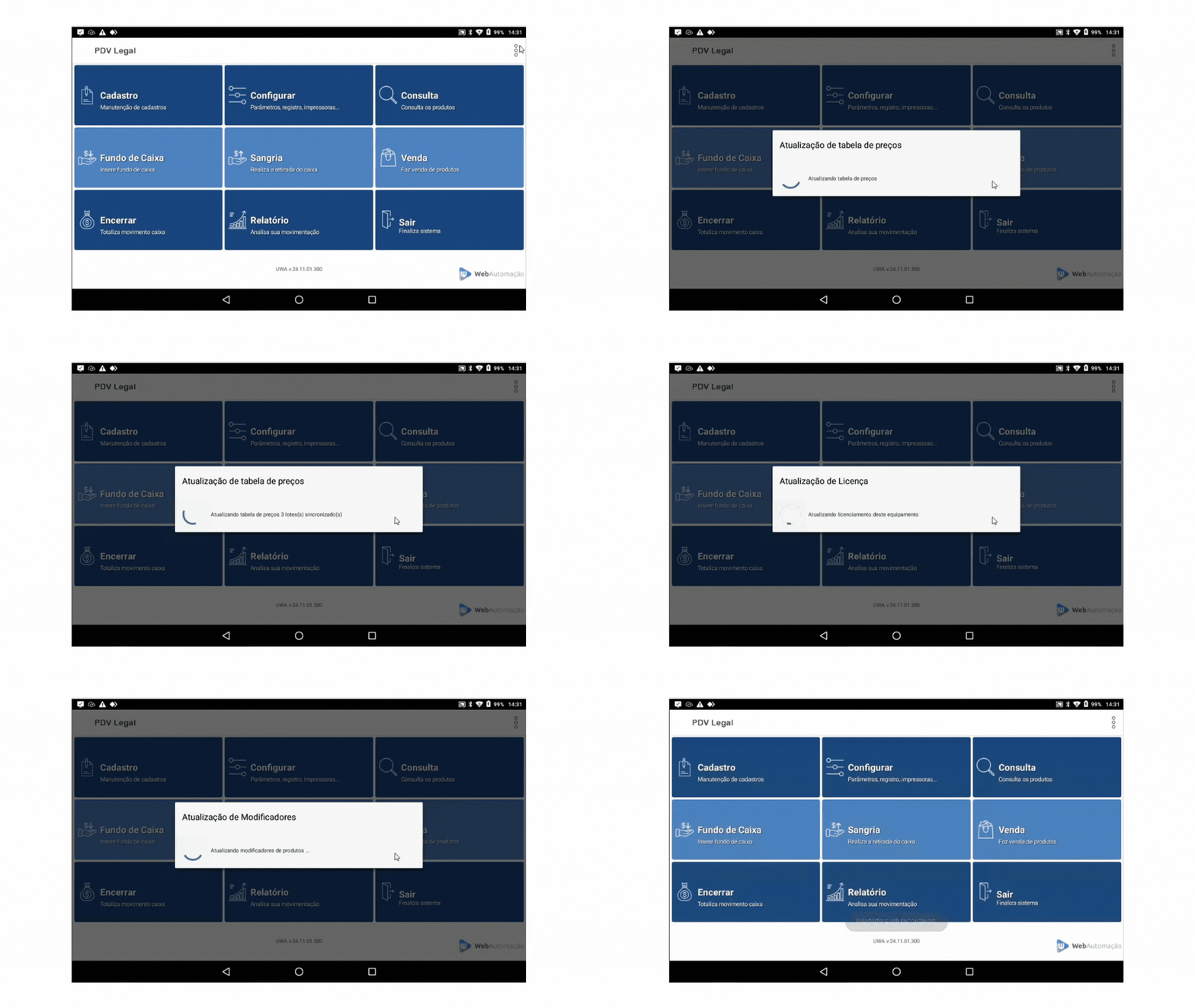
### 3. Sincronizando os dados de cadastro
Depois da validação, atualize os dados do terminal.
{% stepper %}
{% step %}
Toque nos **três pontinhos** no canto superior direito.
{% endstep %}
{% step %}
Selecione **Baixar Tabelas**.
{% endstep %}
{% step %}
Aguarde a conclusão da sincronização.
{% endstep %}
{% endstepper %}
### 4. Validando a operação
Antes de liberar o uso, faça uma validação rápida.
{% stepper %}
{% step %}
Confirme se os produtos e formas de pagamento foram carregados.
{% endstep %}
{% step %}
Verifique se a impressora configurada responde corretamente.
{% endstep %}
{% step %}
Realize uma venda teste de baixo valor.
{% endstep %}
{% endstepper %}
***
## **Preciso de ajuda**
{% hint style="danger" %}
* **Problema:** O aplicativo não aparece no terminal.
* **Solução:** Valide se a liberação no portal da Rede já foi concluída.
* **Problema:** A licença não valida.
* **Solução:** Confirme o **CPF/CNPJ** informado e a filial selecionada.
* **Problema:** Os dados não aparecem no PDV.
* **Solução:** Execute novamente a opção **Baixar Tabelas** com internet estável.
{% endhint %}
***
## **Dicas rápidas**
{% hint style="success" %}
* Use apenas uma conexão por vez durante a instalação.
* Faça a venda teste antes de entregar o terminal para operação.
* Atualize este manual assim que o fluxo do portal Rede for definido.
{% endhint %}
---
# Agent Instructions
This documentation is published with GitBook. GitBook is the documentation platform designed so that both humans and AI agents can read, navigate, and reason over technical content effectively. Learn more at gitbook.com.
## Querying This Documentation
If you need additional information that is not directly available in this page, you can query the documentation by asking a question.
Perform an HTTP GET request on the following URL with the `ask` and `goal` query parameters:
```
GET https://ajuda.pdvlegal.com.br/pdv/instalacao-do-pdv-legal/instalacao-do-pdv-legal-em-terminais-rede.md?ask=&goal=
```
`ask` is the immediate question: it should be specific, self-contained, and written in natural language.
`goal` is what the user is ultimately trying to achieve, the reason they need the answer. Sharing it helps GitBook give you a better, more relevant answer. A goal is most helpful when it describes the outcome the user wants rather than restating the question. For example, with `ask=how do I create an API token`, a goal like `automate deployments from our CI pipeline` lets GitBook tailor the answer to that use case.
The response will contain a direct answer to the question and relevant excerpts and sources from the documentation.
Use this mechanism when the answer is not explicitly present in the current page, you need clarification or additional context, or you want to retrieve related documentation sections.
.png?alt=media&token=01cdec57-6466-4b92-9db2-80c02076fb23)
.png?alt=media&token=a0fc738a-9ab6-4c76-8d09-6fa9b2a24069)
.png?alt=media&token=ab32f6a7-911b-484f-a403-cf5794d19cee)