> For the complete documentation index, see [llms.txt](https://ajuda.pdvlegal.com.br/llms.txt). Markdown versions of documentation pages are available by appending `.md` to page URLs; this page is available as [Markdown](https://ajuda.pdvlegal.com.br/pdv/instalacao-do-pdv-legal/instalacao-do-pdv-legal-em-terminais-stone/configuracao-de-pagamento-stone-no-pdv-legal.md).
# Configuração de pagamento (Stone) no PDV Legal
Configure pagamentos por cartão via TEF e PIX integrado à conta Stone.
Use este manual para configurar pagamentos por cartão via **TEF** e **PIX integrado** nos terminais Stone.
### Pagamento com cartão via TEF
#### Habilitar TEF no Cloud
{% stepper %}
{% step %}
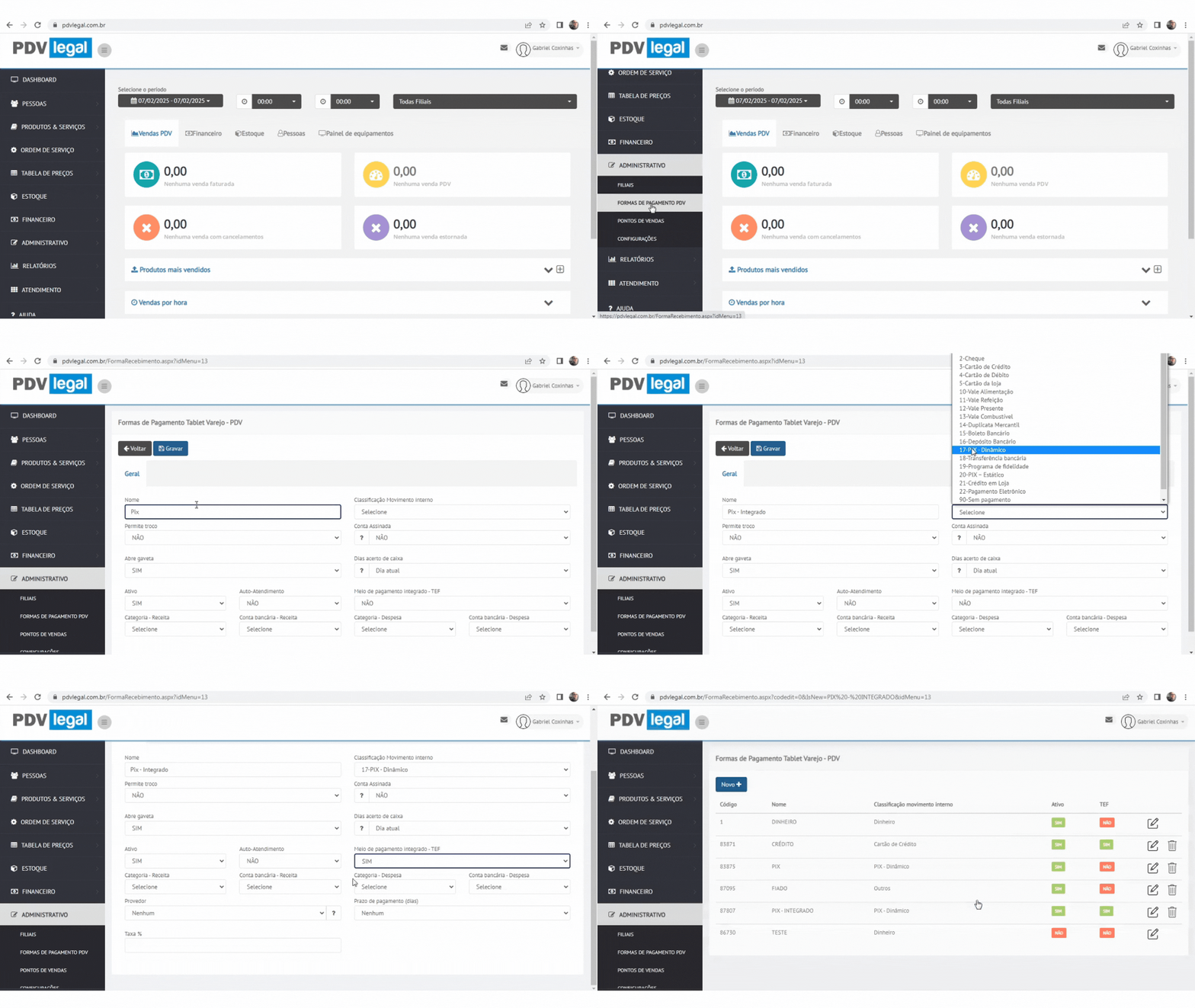
#### **Acesse o Retaguarda Cloud:**
* Acesse: **Retaguarda Cloud > Administrativo > Formas de Pagamento PDV**
* Selecione a forma de pagamento desejada (ex.: "Cartão de Crédito").
* Clique no ícone: Editar
{% endstep %}
{% step %}
#### **Ative o TEF:**
* Marque a opção **"TEF = SIM"**
* Selecione o **provedor** como: **"Stone"**
* Clique em **Gravar**.
{% endstep %}
{% endstepper %}
#### Validar no PDV
{% stepper %}
{% step %}
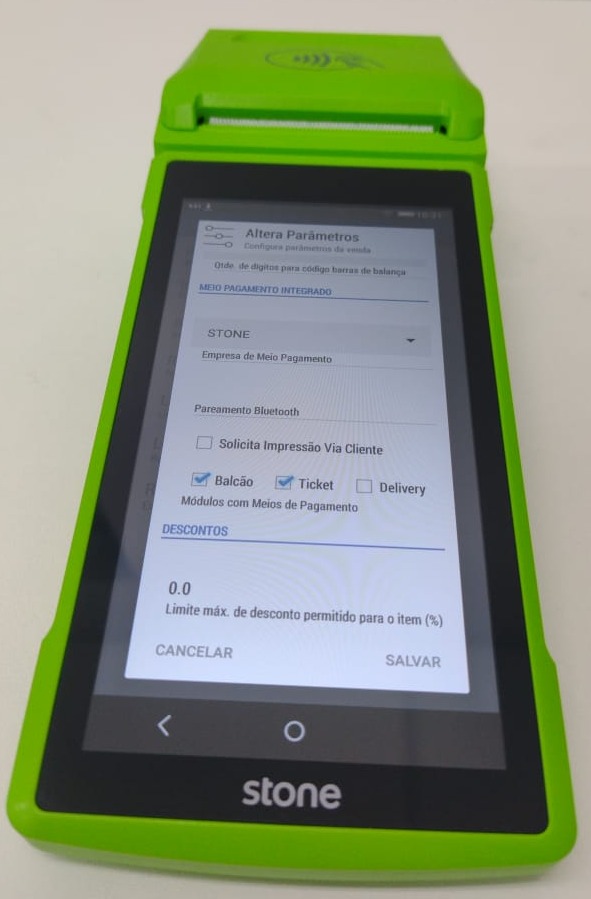
#### **Acesse as configurações do PDV:**
* **PDV > Configurações > Parâmetros.**
{% endstep %}
{% step %}
#### **Verifique a integração:**
* Role até a seção **MEIO PAGAMENTO INTEGRADO**.
* Confira se **"Empresa de Meio de Pagamento"** está configurada corretamente (ex.: "Stone").
{% endstep %}
{% endstepper %}
***
### PIX integrado Stone
{% hint style="danger" %}
Pré-requisito:
* **Crie uma conta Stone**
{% endhint %}
#### Criar a forma de pagamento PIX
{% stepper %}
{% step %}
#### No Retaguarda **Cloud:**
* *Acesse:* **Retaguarda Cloud > Administrativo > Forma de Pagamento PDV > Novo.**
* **Nome:** "PIX" ou similar.
* **Classificação Movimento Interno:** *17-PIX*.
* **Meio de Pagamento Integrado:** *SIM*.
* Clique em **Gravar**.
{% endstep %}
{% endstepper %}
#### Usar PIX no PDV
{% stepper %}
{% step %}
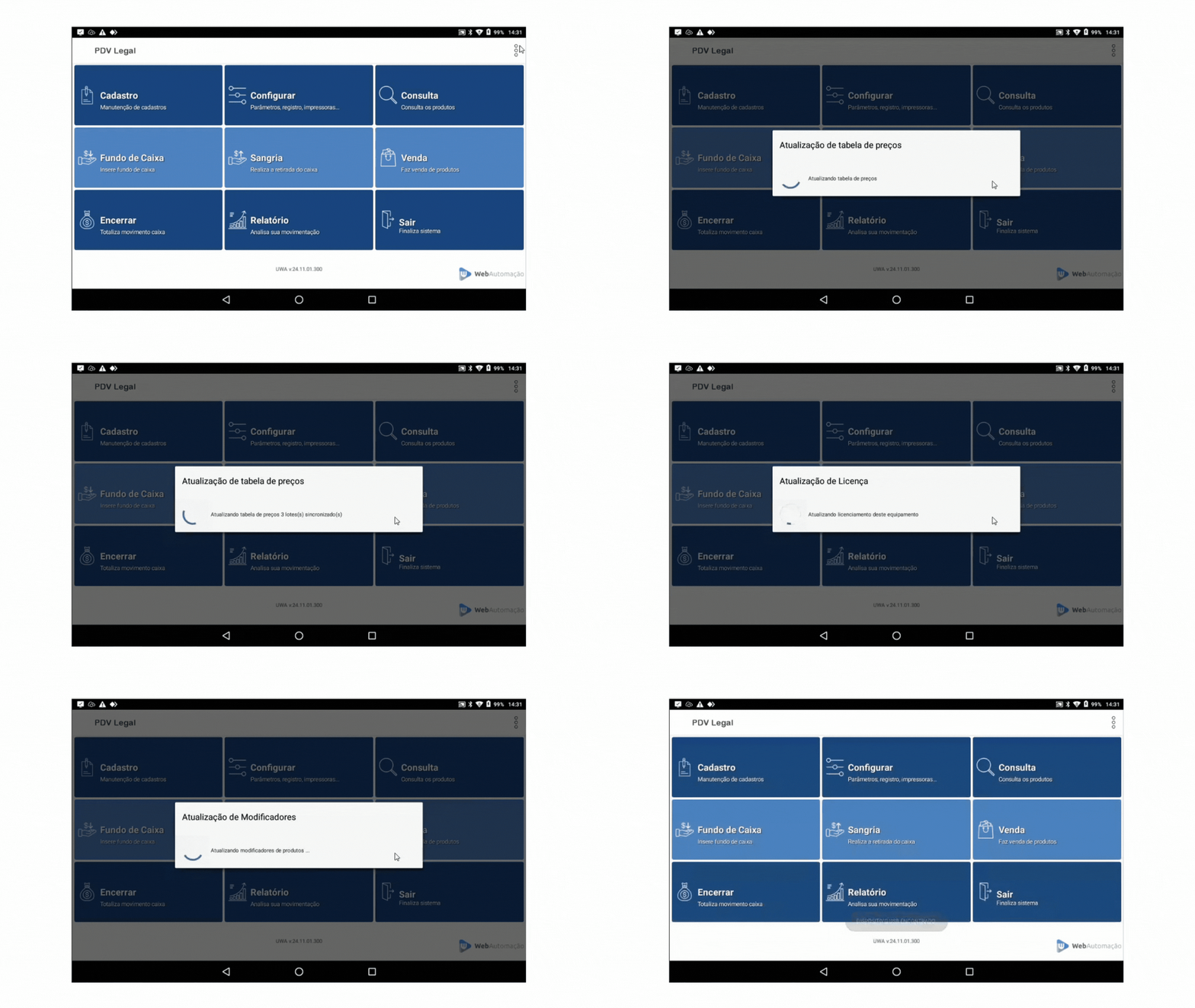
#### **Sincronize tabelas:**
* No PDV, clique no ícone de três pontos.
* Em seguida, clique em **Baixar tabelas**.
{% endstep %}
{% step %}
#### **Selecione PIX no pagamento:**
* Na tela de pagamento, escolha a forma **"PIX"**.
* Um **QR Code** será gerado para o cliente escanear.
{% endstep %}
{% endstepper %}
***
### Problemas comuns
{% hint style="danger" %}
* **Problema:** TEF não funciona após configuração.
* **Solução:** Verifique se a empresa de pagamento no PDV está igual à configurada no Cloud.
* **Problema:** QR Code do PIX não aparece.
* **Solução:** Confira se a conta Stone está ativa e vinculada ao PDV.
* **Problema:** Forma de pagamento não sincroniza.
* **Solução:** Force a sincronização manual em *+Funções > Sincronizar*.
{% endhint %}
### Validação
{% hint style="success" %}
* **Teste o TEF:** Realize uma venda teste com valor baixo para validar a integração.
* **QR Code dinâmico:** O PIX gera um código único por transação, garantindo segurança.
{% endhint %}
{% hint style="warning" %}
* **Conta Stone obrigatória:** Sem ela, o PIX não funcionará.
{% endhint %}
---
# Agent Instructions
This documentation is published with GitBook. GitBook is the documentation platform designed so that both humans and AI agents can read, navigate, and reason over technical content effectively. Learn more at gitbook.com.
## Querying This Documentation
If you need additional information that is not directly available in this page, you can query the documentation dynamically by asking a question.
Perform an HTTP GET request on the current page URL with the `ask` query parameter, and the optional `goal` query parameter:
```
GET https://ajuda.pdvlegal.com.br/pdv/instalacao-do-pdv-legal/instalacao-do-pdv-legal-em-terminais-stone/configuracao-de-pagamento-stone-no-pdv-legal.md?ask=&goal=
```
`ask` is the immediate question: it should be specific, self-contained, and written in natural language.
`goal` is optional and describes the broader end goal you are ultimately trying to accomplish on behalf of the user. GitBook uses it to tailor the answer towards what is most useful for that goal.
The response will contain a direct answer to the question and relevant excerpts and sources from the documentation.
Use this mechanism when the answer is not explicitly present in the current page, you need clarification or additional context, or you want to retrieve related documentation sections.
.gif?alt=media&token=07da45a0-d926-4a61-bb78-e96ab70ec0e5)
.gif?alt=media&token=2aa7185e-4706-4170-ac1b-2033a473b323)